
YouTube Live Stream Credentials (Stream URL and Stream Name)
While you can already use XSplit Broadcaster to connect to YouTube Live directly, you may optionally want to use Custom RTMP to connect instead.
This guide shows you how to obtain the Stream Key and Stream URL from YouTube Live as well as set up the Custom RTMP plugin on XSplit Broadcaster.
Getting your Stream Credentials (Stream URL and Stream Name)
- Go to your Live Dashboard by clicking here. Alternatively on the YouTube home page: click on the +Create button on the top-right corner and select Go live.

- The Stream URL will be shown under the Stream Settings tab. Click on the Copy button to copy it to your clipboard.

- The Stream Key can be copied by clicking on the Copy button on the top-right.

Using your YouTube Live Stream Credentials
Setting up Custom RTMP
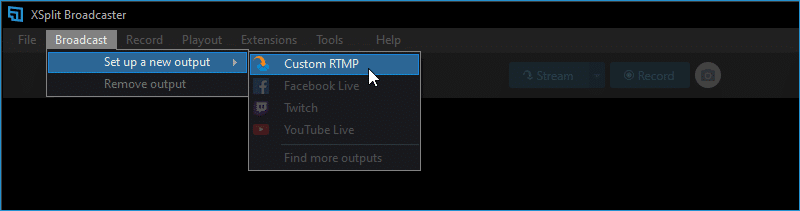
- On XSplit Broadcaster: click on Broadcast > Set up new output > Custom RTMP
- Enter the Stream URL and Stream Key from YouTube into the RTMP URL and Stream Key field respectively.
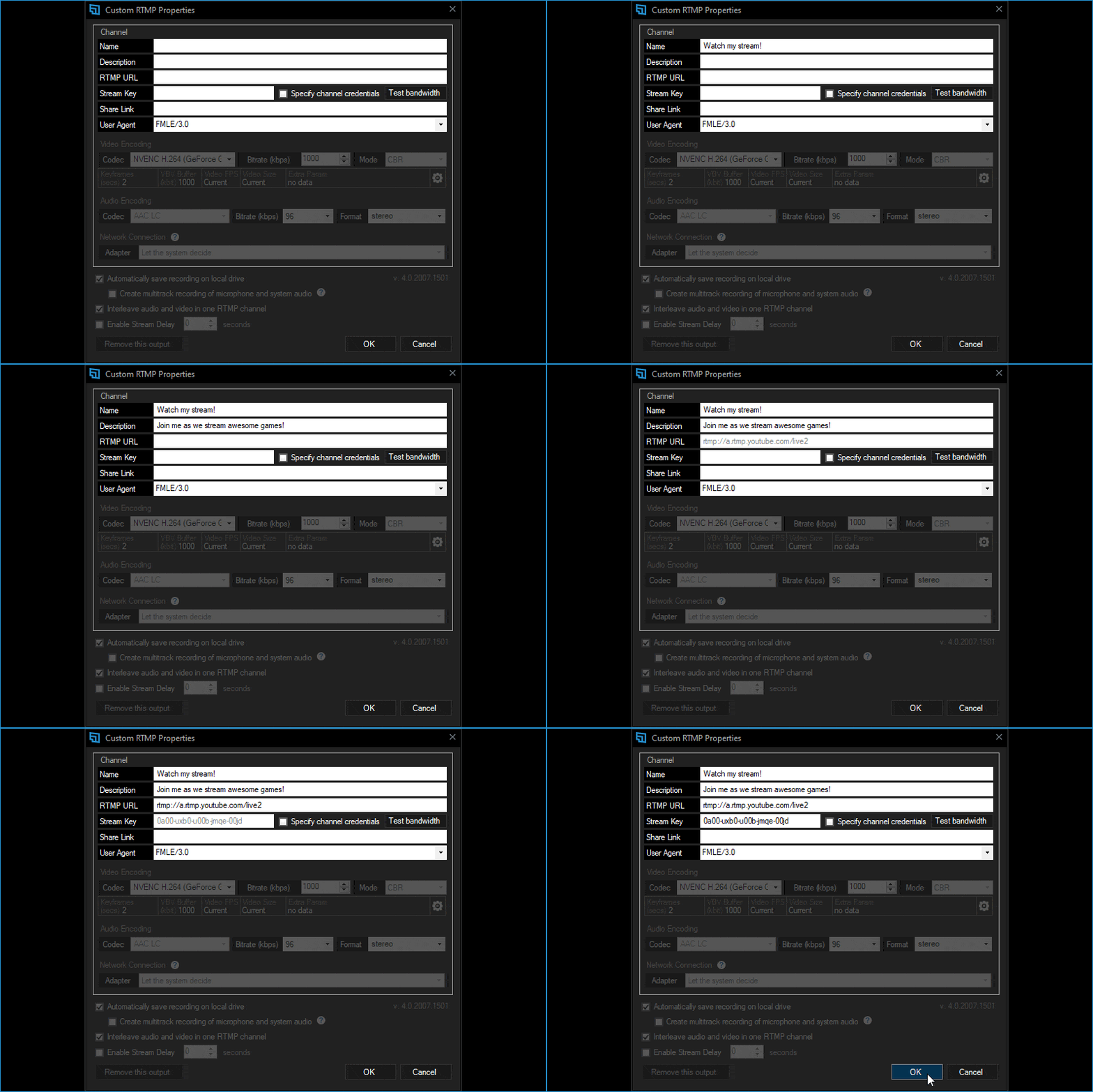
- The Name field is also required. This way, you can easily distinguish your output on the Broadcast menu list.
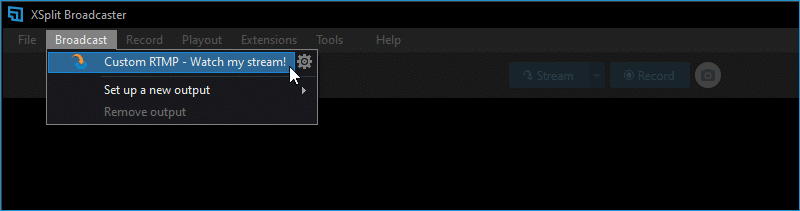
- Click OK and you should now be able to access this as an output under Broadcast and start your stream directly.
Updated on: 04/02/2026
Thank you!